Showing posts with label Big Data. Show all posts

Monday, April 17, 2017

Using Data Partition with Apache Drill

In this article we will walk through how to creation partitions using apache drill on data residing in operating system.

Many a times , we have data generated or received as files at a certain frequency i.e. daily , hourly etc and we want in effective way to query only a certain section of data without scanning all the files.

For our e.g , we will assume that we receive files every quarter within a year and or requirement is that when we query the data for a particular query , only that quarter file gets scanned and not all the files. The advantage of drill is that it doesn't generate and persist metadata before hand and generates the same on the fly.

Lets assume that our files resides in folder with a year and with year , folders for quarters are created and each quarterly folder has a file for that particular quarter. So our folder structure will look something like this:

<<BasePath>>/2016/Q1/file.csv
<<BasePath>>/2016/Q2/file.csv
<<BasePath>>/2016/Q3/file.csv
<<BasePath>>/2016/Q4/file.csv
<<BasePath>>/2017/Q1/file.csv
<<BasePath>>/2017/Q2/file.csv
<<BasePath>>/2017/Q3/file.csv
<<BasePath>>/2017/Q4/file.csv
  1. Each of the file will have the sample data in the below format:
  2. Now we need to create a Apache drill view on top of this data till the base path i.e. <<BasePath>>
  3. Visit the <<DrillHome>> path log into the Apache Drill terminal console using below command:
  4. bin/sqlline -u jdbc:drill:schema=dfs;zk=<<IP:Port>>
  5. Just run a query on the base path to ensure that the data is accessible. 
  6. select * from `dfs`.`root`.`/data/dwhbi/logs/`;
  7. You would have observed above that the output of the above query gives dir0 and dir1 as 2 separate columns. Now we will create a view on top of this data using the generated columns dir0 and dir1.
  8. First set the workspace by executing the command use dfs.root;
  9. Now create a view by executing the below command.
  10. CREATE VIEW data_partition AS SELECT dir0 AS `Year`,dir1 AS `Qtr`,columns[0] As `Id`,columns[1] As `Name`,columns[2] AS `Sales` FROM `dfs`.`/data/dwhbi/logs/`;
  11. Once the view is created , you can fire a query to fetch the relevant data for a year and quarter.
  12. We can view the plan to see how many files were scanned to fetch the data to ensure that the partition pruning happened.
  13. As seen above only the relevant file was scanned and not all the files.
  14. Do revert/comments if you have any observations.

Tuesday, June 21, 2016

Using Beeline to connect to HiveServer 2

This article will guide you on how to connect Apache Drill with Hive.

PreRequisite:

1. Hadoop should be installed.
2. Hive should be installed

Implementation:
1. Goto the path where hive is installed.

2. Start the Hive Server2 process.


3. This will start the hiveserver2 process as a foreground process. In order to stop the process , press Ctrl + C. If the process is to be started as background process , execute "./hive --service hiveservice2 &"

4. Start a new terminal.

5. Goto the hive installation path as mentioned in step 1.

6, If there is a metastore_db folder , go inside the same and remove all the *.lck files. This is required because default database derby supports only 1 connection. Recommended metastore db for production is mysql.

7. Start the beeline shell


8. The beeline shell will be started as shown above. Lets connect to the hiveserver2 process.


9. On executing "!connect jdbc:hive2://" command , user will be prompted for username and password. Just press enter to continue. As we are running both the beeline client and hiveserver2 process on the same node, we execute the command as "!connect jdbc:hive2://" . If the hiveserver2 process was running on the a different server , we would need to connect as "!connect jdbc:hive2://hostname:port". The default port for hiveserver2 process is 10000.

10. Lets display all the hive tables.


 11. Lets execute some queries against the tables.


12. In order to quit the beeline shell, execute "!quit" command


Conclusion:
Hope this helps you to understand how to connect hiveserver2 process using beeline.

Sourabh Jain
Big Data & Analytics Architect

Monday, June 20, 2016

Using Hive with Apache Drill

This article will guide you on how to connect Apache Drill with Hive.

PreRequisite:

1. Hadoop should be installed.
2. Hive should be installed
3. Apache Drill should be installed.

Implementation:
1. Goto the path where hive is installed and start the hive metastore service:

Goto Hive Home
2. Start the Hive Metastore service.
Start Hive Service

3. You will observe the below screen once the hive metastore service is successfully implemented.

Successfully Start Hive Service

4. Start a new terminal.
5. Goto the path where Apache Drill is installed.

Goto Drill Home

6. Start the Drill server in embeded mode

Start Drill Embedded Mode

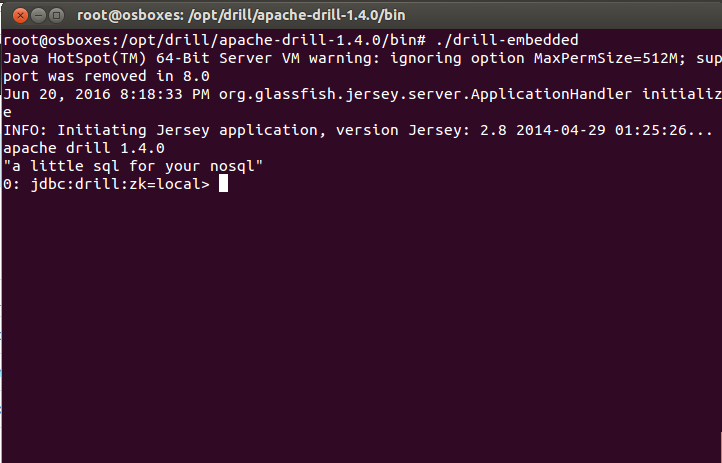
7. Once the drill server is started in embedded mode, you will observe the drill prompt:

Apache Drill Shell

7. Go to the Apache Drill browser at http:localhost:8047 . You will observe below screen:

Apache Drill Web UI

8. Click on Storage and then Enable hive storage plugin. The plugin should appear now in enabled storage plugins as shown below.


Enable Hive Storage Plugin


9. Click on update against the hive storage plugin and update the value as shown in the screen

Configure Hive Storage Plugin

10. Go back to the terminal where you have apache drill server started i.e. step 7.

11. Change the schema to use hive.

Change Hive Schema

12. Now you can run show tables to list all the hive tables;

List Hive Tables

12. You can run any query on the hive tables. Remember, the query will not invoke a MapReduce process.

Execute Queries on Hive via Apache Drill

Conclusion:
Hope this helps you to understand how to configure Apache Drill with Hive metastore interface to query hive tables directly.

Sourabh Jain
Big Data & Analytics Architect